Tekton Chains
The Chains configuration
Since Tekton Chains is a Tekton Component, on OpenShift, it is configured and managed by the {openshift_console_url}/k8s/all-namespaces/operators.coreos.com~v1alpha1~ClusterServiceVersion?cluster-service-version=pipelines[OpenShift Pipelines Operator^,window="console"].
Therefore, it is also configured via the operator:
In our terminal, take a look at the tektonconfig custom resource (CR), specifically the spec.chain section:
oc get tektonconfig -n openshift-operators -o yaml | lessHINT: Exit less with q or Q
The operator turns the global tektonconfig into a chains-config ConfigMap in the openshift-pipelines namespace, that the Chains Controller reads. Look at it with:
oc get configmap chains-config -n openshift-pipelines -o jsonpath='{.data}' | jq{
"artifacts.oci.format": "simplesigning",
"artifacts.oci.storage": "oci",
"artifacts.pipelinerun.format": "in-toto",
"artifacts.pipelinerun.storage": "oci",
"artifacts.taskrun.format": "in-toto",
"artifacts.taskrun.storage": "oci",
"transparency.enabled": "true",
"transparency.url": "https://rekor-server-tssc-tas.apps.cluster-vtm4r.dynamic.redhatworkshops.io"
}
Don’t change or patch this ConfigMap directly, as the operator will reconcile it based on the global tektonconfig CR.
|
If you closely compare the chains-config configMap and the "chain" section in the tektonConfig you will also notice that the configMap contains all the info that Chains needs to run, but not the Chains configuration itself: generateSigningSecret: true is missing, for example, also the Chains "master switch": disabled: false
|
The current configuration
So, what do these values mean (we’ll look at the tektonconfig)
    chain:
      artifacts.oci.format: simplesigning
      artifacts.oci.storage: oci
      artifacts.pipelinerun.format: in-toto
      artifacts.pipelinerun.storage: oci
      artifacts.taskrun.format: in-toto
      artifacts.taskrun.storage: oci
      disabled: false
      generateSigningSecret: true
      options: {}
      performance:
        disable-ha: false
      transparency.enabled: "true"
      transparency.url: https://rekor-server-tssc-tas.apps.cluster-vtm4r.dynamic.redhatworkshops.io
Here’s a breakdown of each Tekton Chains configuration parameter:
Artifact Format & Storage:
-
artifacts.oci.format: simplesigning- Uses "classic" signing format for OCI (container) images; creates the cryptographic signatures for artifacts (images) -
artifacts.oci.storage: oci- Stores OCI artifact signatures in the OCI registry itself (alongside the images) -
artifacts.pipelinerun.format: in-toto- Creates attestations for PipelineRuns using the in-toto format (for more information about thein-totoformat and attestations in general, see Provenance & Attestations) -
artifacts.pipelinerun.storage: oci- Stores PipelineRun attestations in the OCI registry -
artifacts.taskrun.format: in-toto- Creates attestations for TaskRuns using the in-toto format -
artifacts.taskrun.storage: oci- Stores TaskRun attestations in the OCI registry
Core Settings:
-
disabled: false- Chains controller is active and will sign/attest TaskRuns and PipelineRuns -
generateSigningSecret: true- Automatically creates signing keys for Chains (rather than providing your own) and stores it in thesigning-secretssecret in theopenshift-pipelinesnamespace -
options: {}- Additional configuration options (currently empty)
Performance:
-
performance.disable-ha: false- High Availability is enabled; multiple Chains controller replicas can run for redundancy
Transparency Log:
-
transparency.enabled: "true"- Enables publishing signatures/attestations to the configured Rekor transparency log for public verification -
transparency.url- The Rekor server endpoint where signatures are logged (part of Trusted Artifact Signer/Sigstore) to provide an immutable audit trail
Configuration Options
For reference and to give you some ideas of the options available (feel free to play with the configuration - it’s not a customer environment, after all) here’s a full list of configuration options and what they do
Click & Expand to see the full list of configuration options
Details
TaskRun Configuration
artifacts.taskrun.format
-
in-toto- Stores TaskRun payloads in the in-toto attestation format -
slsa/v1- Alias of in-toto for backwards compatibility -
slsa/v2alpha3- Corresponds to SLSA v1.0 spec, uses latest v1 Tekton Objects (recommended for new users wanting SLSA v1.0) -
slsa/v2alpha4- Corresponds to SLSA v1.0 spec, uses latest v1 Tekton Objects, reads type-hinted results from StepActions (recommended) -
Default:
in-toto
artifacts.taskrun.storage
-
tekton- Store signatures in TaskRun annotations -
oci- Store signatures in OCI registries -
gcs- Store signatures in Google Cloud Storage -
docdb- Store signatures in document database (Firestore, DynamoDB, MongoDB) -
grafeas- Store signatures in Grafeas (Container Analysis) -
archivista- Store signatures in Archivista -
Multiple backends can be specified with comma-separated list (e.g.,
"tekton,oci") -
Empty string
""disables TaskRun artifact storage -
Default:
tekton
artifacts.taskrun.signer
-
x509- Key-based signing using x509 certificates -
kms- Signing using Key Management Service (AWS KMS, GCP KMS, Azure Key Vault, HashiCorp Vault) -
none- Disable signing while still storing provenance -
Default:
x509
PipelineRun Configuration
artifacts.pipelinerun.format
-
in-toto- Stores PipelineRun payloads in the in-toto attestation format -
slsa/v1- Alias of in-toto for backwards compatibility -
slsa/v2alpha3- Corresponds to SLSA v1.0 spec, uses latest v1 Tekton Objects (recommended) -
slsa/v2alpha4- Corresponds to SLSA v1.0 spec, uses latest v1 Tekton Objects, reads type-hinted results from StepActions (recommended) -
Default:
in-toto
artifacts.pipelinerun.storage
Same options as TaskRun storage: tekton, oci, gcs, docdb, grafeas, archivista
- Can use comma-separated list for multiple backends
- Empty string disables PipelineRun artifact storage
- Default: tekton
artifacts.pipelinerun.signer
Same options as TaskRun signer: x509, kms, none
- Default: x509
artifacts.pipelinerun.enable-deep-inspection
-
"true"- Chains inspects both pipeline level and task level results (captures inputs/outputs from child TaskRuns) -
"false"- Chains only checks pipeline level results -
Default:
"false"
OCI Configuration (for the OCI Artifacts, aka Images)
artifacts.oci.format
-
simplesigning- The only currently supported format for OCI payloads -
Default:
simplesigning
artifacts.oci.storage
-
tekton- Store in TaskRun/PipelineRun annotations -
oci- Store in OCI registries alongside images -
gcs- Store in Google Cloud Storage -
docdb- Store in document database -
grafeas- Store in Grafeas -
Can use comma-separated list for multiple backends
-
Empty string disables OCI artifact storage
-
Default:
oci
artifacts.oci.signer
-
x509- Sign using x509 certificates -
kms- Sign using Key Management Service -
none- Skip signing OCI artifacts (but attestations are still generated and pushed if storage is configured) -
Default:
x509
Storage Configuration
storage.oci.repository
-
Specifies the OCI repository to store signatures and attestations
-
If undefined and OCI storage is enabled, attestations are stored alongside the OCI artifact itself
-
Example:
gcr.io/my-project/my-repo
storage.gcs.bucket
-
The Google Cloud Storage bucket name for storing artifacts
-
Example:
my-tekton-chains-bucket
storage.docdb.url
-
The URI reference to a docstore collection
-
Examples:
-
Firestore:
firestore://projects/[PROJECT]/databases/(default)/documents/[COLLECTION]?name_field=name -
DynamoDB:
dynamodb://[TABLE_NAME]?partition_key=[KEY] -
MongoDB:
mongo://[DATABASE]/[COLLECTION]?id_field=_id
-
MongoDB Connection Options (for docdb):
-
storage.docdb.mongo-server-url- Direct MongoDB connection URI (not recommended, stores in ConfigMap) -
storage.docdb.mongo-server-url-dir- Path to directory containing file namedMONGO_SERVER_URLwith connection string (recommended, uses Secret) -
storage.docdb.mongo-server-url-path- Direct path to file containing MongoDB connection URI (recommended, uses Secret) -
These options override each other in order: path > dir > url >
MONGO_SERVER_URLenvironment variable
storage.grafeas.projectid
-
The GCP project ID where Grafeas server is located
-
Required for Grafeas storage backend
storage.grafeas.noteid
-
Prefix for Grafeas note names (no spaces allowed)
-
Chains appends
-simplesigningfor ATTESTATION notes and-intotofor BUILD notes -
If not configured, defaults to
tekton-<NAMESPACE>
storage.grafeas.notehint
-
Human-readable name for the Grafeas ATTESTATION note
-
Default:
"This attestation note was generated by Tekton Chains"
storage.archivista.url
-
URL of the Archivista server for storing attestations
-
Example:
https://archivista.testifysec.io
In-toto/SLSA Configuration
builder.id
-
The builder ID to set for in-toto attestations
-
Default:
https://tekton.dev/chains/v2
builddefinition.buildtype
Only valid for slsa/v2alpha3 and slsa/v2alpha4 formats:
-
https://tekton.dev/chains/v2/slsa- Strictly conforms to SLSA v1.0 spec -
https://tekton.dev/chains/v2/slsa-tekton- Conforms to SLSA v1.0 but adds Tekton-specific information (PipelineRun/TaskRun labels, annotations as internalParameters, captures each pipeline task under resolvedDependencies) -
Default:
https://tekton.dev/chains/v2/slsa
Transparency Log (Rekor) Configuration
transparency.enabled
-
true- Automatically upload all signatures and attestations to transparency log -
false- Disable transparency log uploads -
manual- Only upload TaskRuns/PipelineRuns with annotationchains.tekton.dev/transparency-upload: "true" -
Default:
false
transparency.url
-
The URL of the transparency log server (Rekor)
-
Default:
https://rekor.sigstore.dev -
Example (custom):
https://rekor-server.mycompany.com
Keyless Signing (Fulcio) Configuration
signers.x509.fulcio.enabled
-
true- Enable keyless signing with Fulcio (obtain short-lived certificates via OIDC) -
false- Use traditional key-based signing -
Default:
false
signers.x509.fulcio.address
-
The Fulcio server URL to request certificates from
-
Default:
https://fulcio.sigstore.dev -
Example (custom):
http://fulcio.fulcio-system.svc(for internal Kubernetes service)
signers.x509.fulcio.issuer
-
The expected OIDC issuer URL
-
Default:
https://oauth2.sigstore.dev/auth -
Example (Keycloak):
https://keycloak.example.com/auth/realms/myrealm
signers.x509.fulcio.provider
-
google- Use Google OIDC provider -
spiffe- Use SPIFFE for workload identity -
github- Use GitHub Actions OIDC tokens -
filesystem- Read token from file specified insigners.x509.identity.token.file -
If unset, each provider will be attempted automatically
-
Default: Unset (tries all providers)
signers.x509.identity.token.file
-
Path to file containing OIDC ID token
-
Used when
signers.x509.fulcio.provideris set tofilesystem -
Example:
/var/run/secrets/tokens/oidc-token
signers.x509.tuf.mirror.url
-
TUF server URL for distributing Sigstore’s root of trust
-
The URL
$TUF_URL/root.jsonmust be accessible
KMS Configuration
signers.kms.kmsref
The URI reference to a KMS service. Supported schemes:
-
gcpkms://projects/[PROJECT]/locations/[LOCATION]/keyRings/[KEYRING]/cryptoKeys/[KEY]/versions/[VERSION]- Google Cloud KMS -
awskms://[ENDPOINT]/[ID/ALIAS/ARN]- AWS KMS -
azurekms://[VAULT_NAME][VAULT_URI]/[KEY]- Azure Key Vault -
hashivault://[KEY]- HashiCorp Vault
KMS Authentication:
-
signers.kms.auth.address- URI of KMS server (e.g., VAULT_ADDR for HashiCorp Vault) -
signers.kms.auth.token- Auth token for KMS server (e.g., VAULT_TOKEN) -
signers.kms.auth.token-path- Path to file containing KMS auth token (recommended over direct token) -
signers.kms.auth.oidc.path- Path used for OIDC authentication (e.g.,jwtfor Vault) -
signers.kms.auth.oidc.role- Role used for OIDC authentication with KMS -
signers.kms.auth.spire.sock- URI of SPIRE socket for KMS token (e.g.,unix:///tmp/spire-agent/public/api.sock) -
signers.kms.auth.spire.audience- Audience for requesting SVID from SPIRE
OpenShift-specific Configuration
generateSigningSecret (TektonChain CR parameter)
-
true- Operator generates a cosign key pair and stores insigning-secretssecret -
false- Operator does not generate keys (use when providing your own keys or using keyless signing) -
Default:
false -
Note: When set to true, creates
cosign.key(private key),cosign.password(decryption password), andcosign.pub(public key)
disabled (TektonChain CR parameter)
-
true- Disable Chains feature completely -
false- Enable Chains -
Default:
false
performance.disable-ha
Your config shows this parameter set to false. This controls whether high-availability mode is disabled for the Chains controller.
Chains in action
In this environment, we have a running Chains configuration that is used in all the exercises leveraging Red Hat Developer Hub as our Developer Portal and "Frontend" to the CI and CD (through the Tekton and ArgoCD plugins).
So, let’s use what we have and generate an image with associated signature and attestation, so we can see what the above configuration generated.
First, login to our {rhdh_url}[Red Hat Developer Hub instance^,window="rhdh"] as {rhdh_user} with password {rhdh_user_password}
|
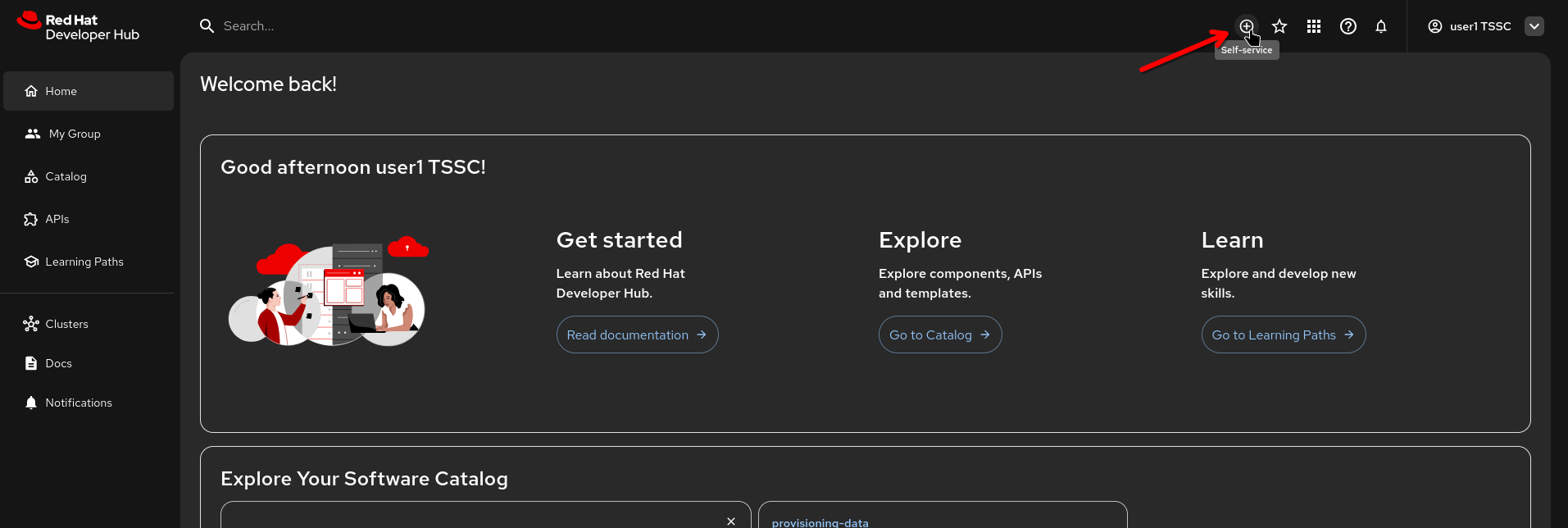
Click on the "Self-Service" button (the (+) icon) to get to the {rhdh_url}/create[Self-Service Page^,window="rhdh"]
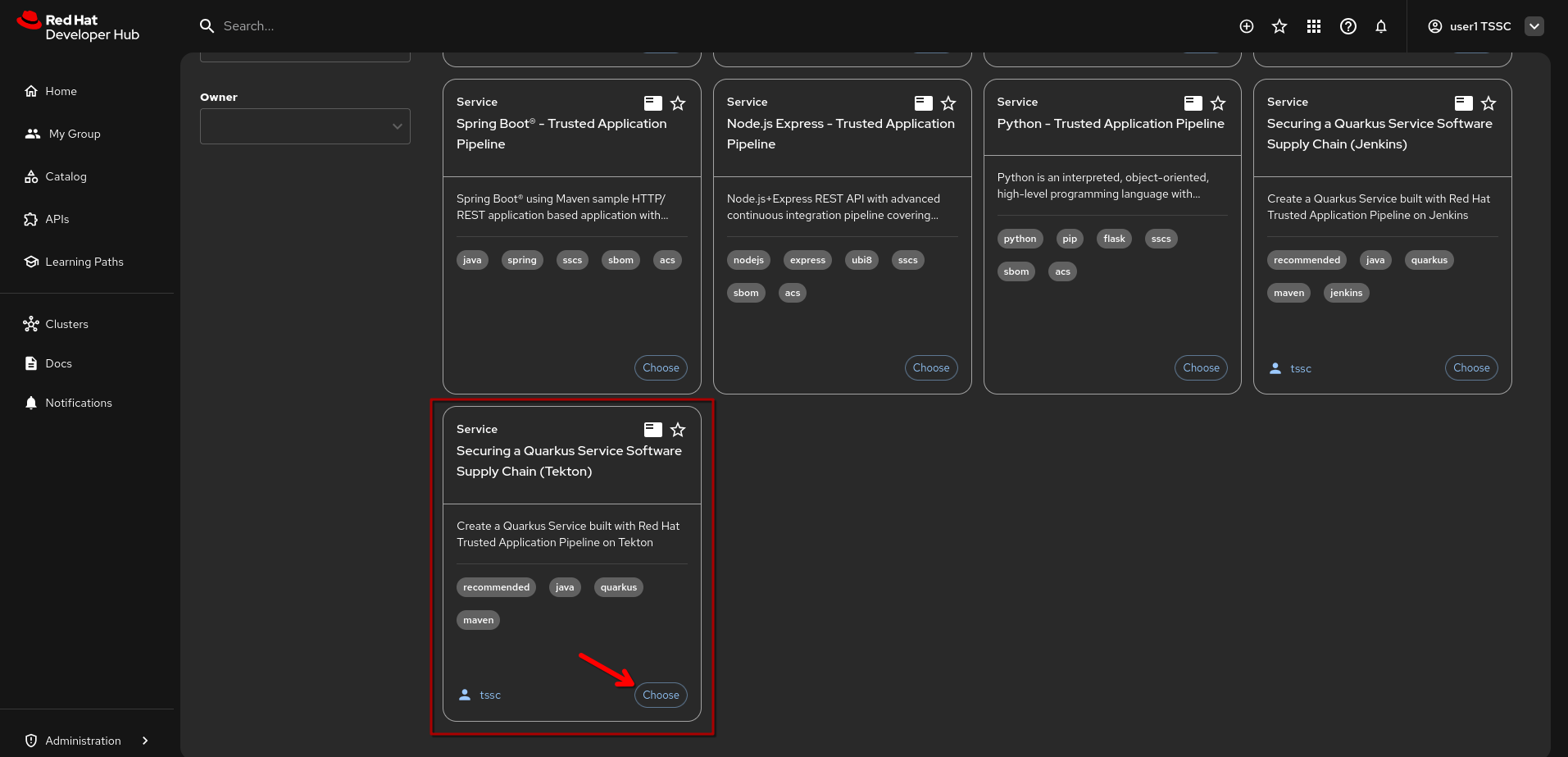
Scroll down to the template named "Securing a Quarkus Service Software Supply Chain (Tekton)" and click on {rhdh_url}/create/templates/default/quarkus-stssc-template["Choose"^,window="rhdh"]
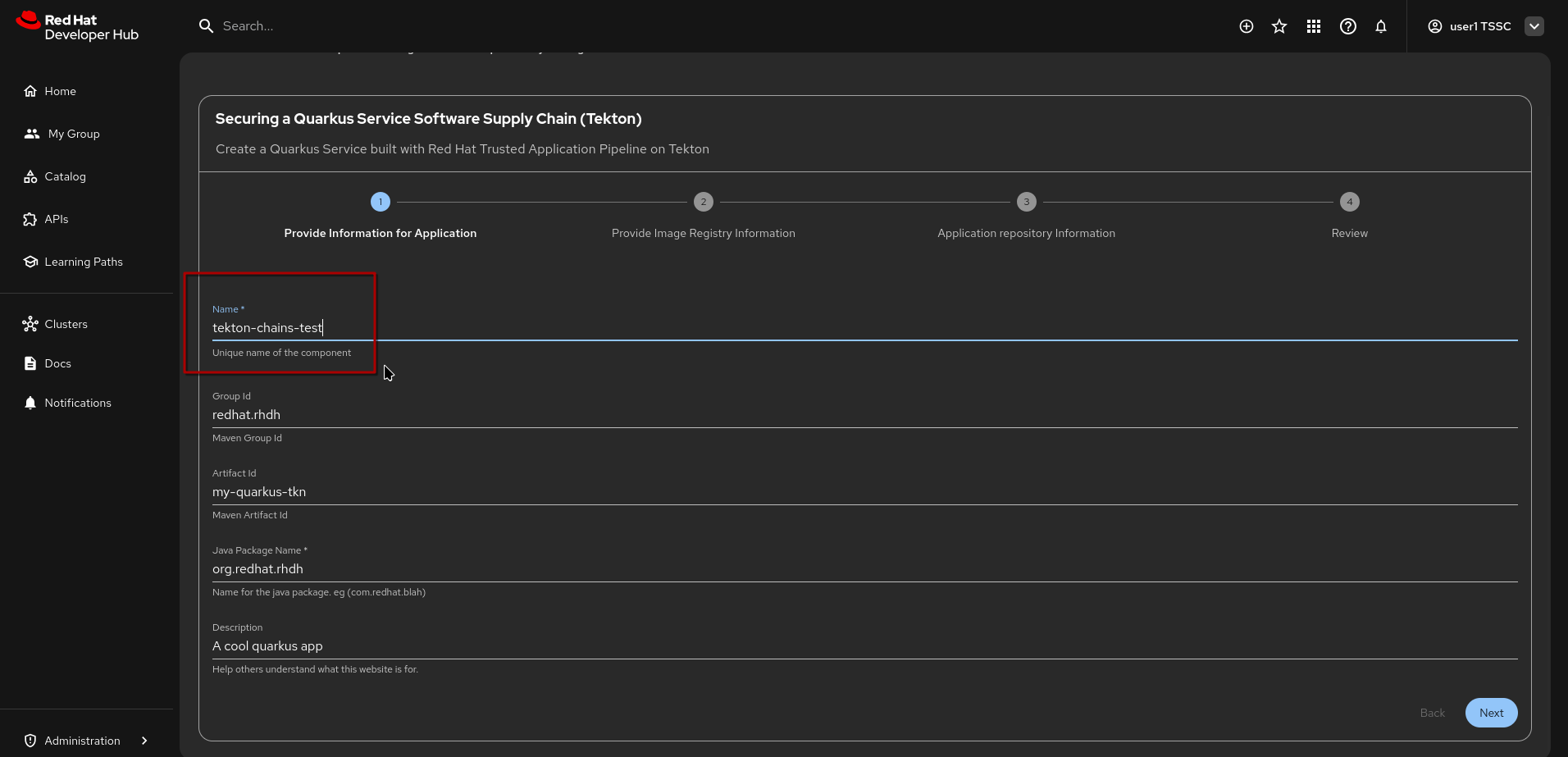
-
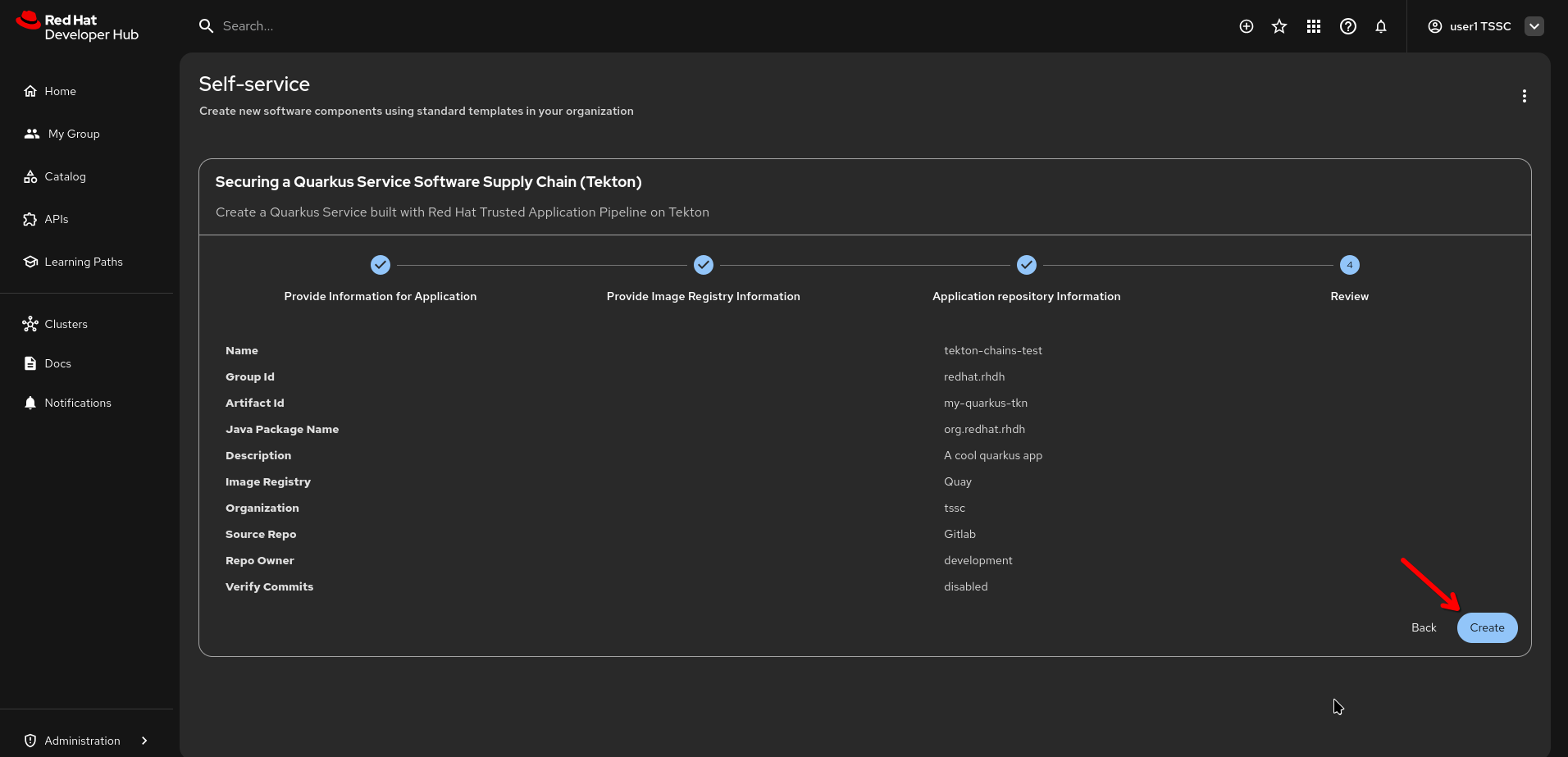
Change the name to
tekton-chains-testand leave the other fields at their default values -
Click "Next"
| All the following scripts and examples assume you gave it the name "tekton-chains-test" - if you give it any other name, you will have to adapt accordingly. |
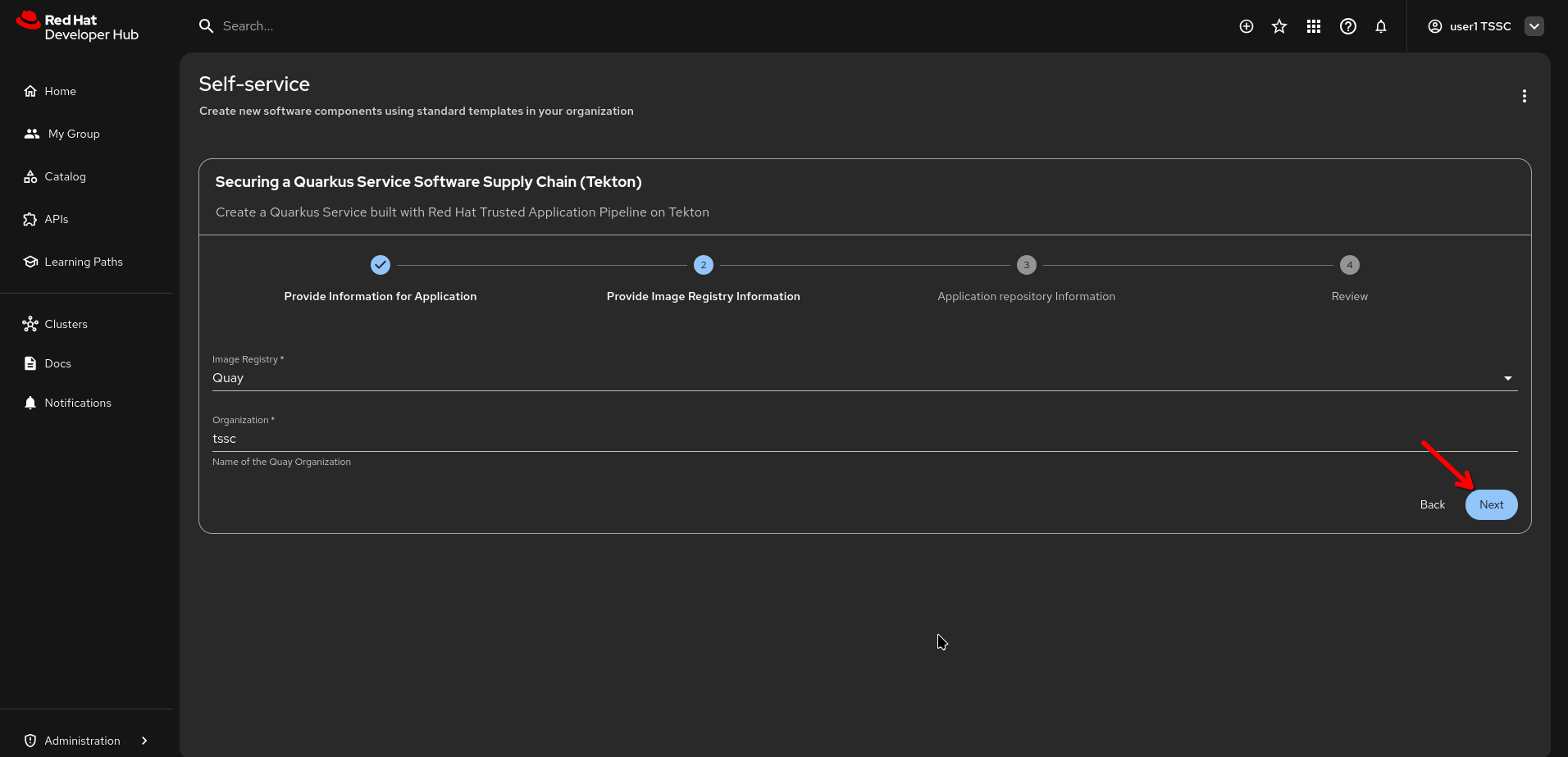
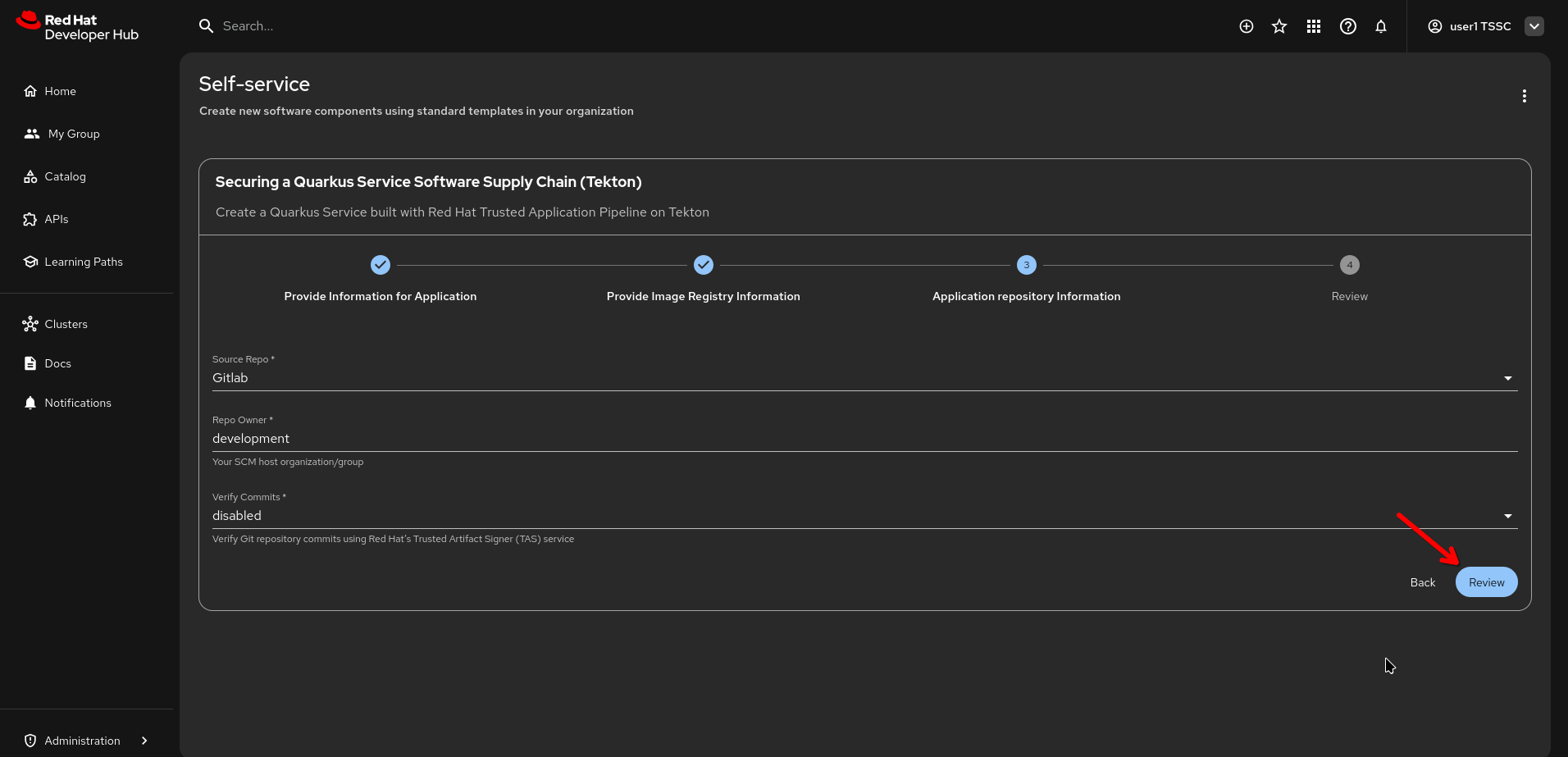
Leave all other fields at their default values and click "Next" and then "Review", followed by "Create".
(Click on the images for full size)
|
|
|
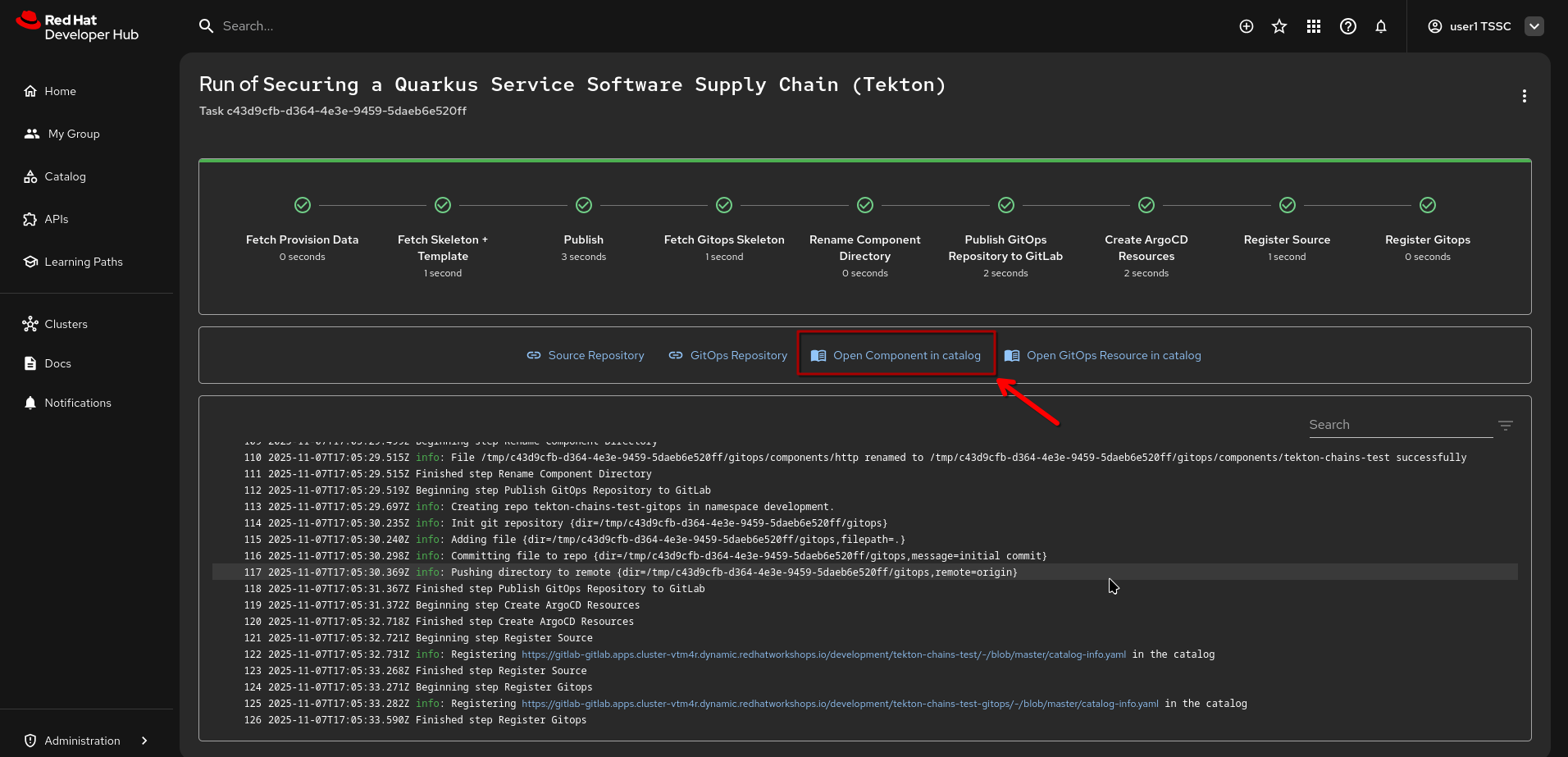
The template will instantiate all the necessary resources, from the git repo to the ArgoCD artifacts - and for our context here, The Pipeline, which will run automatically for an initial build after a few moments.
Click on {rhdh_url}/catalog/default/component/tekton-chains-test["Open Component in Catalog"^,window="rhdh"]
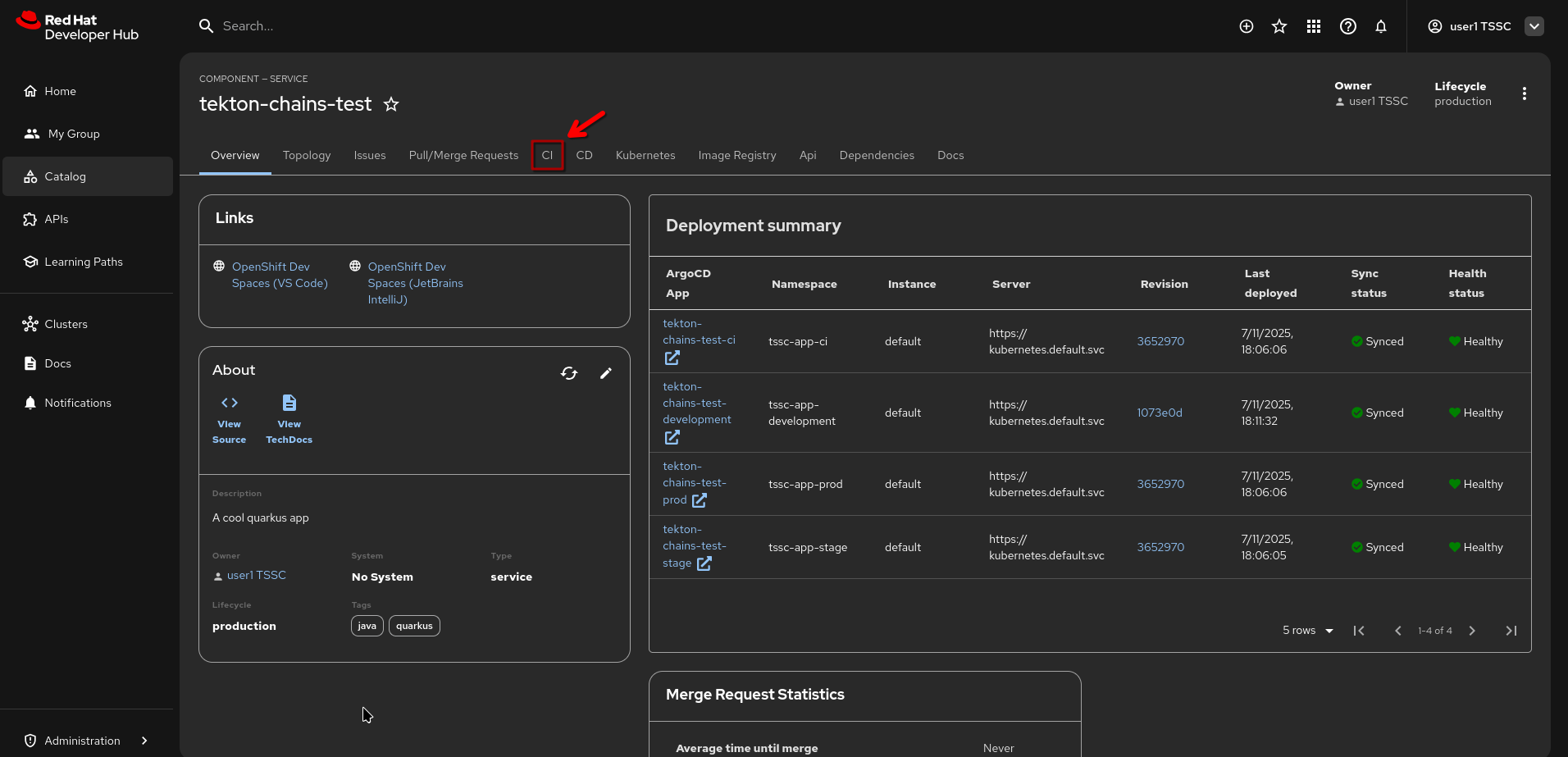
When you click the {rhdh_url}/catalog/default/component/tekton-chains-test/ci["CI" tab^, window="rhdh"] on the Component Page, you’ll see that a pipeline has just started (give it a moment if it hasn’t already).
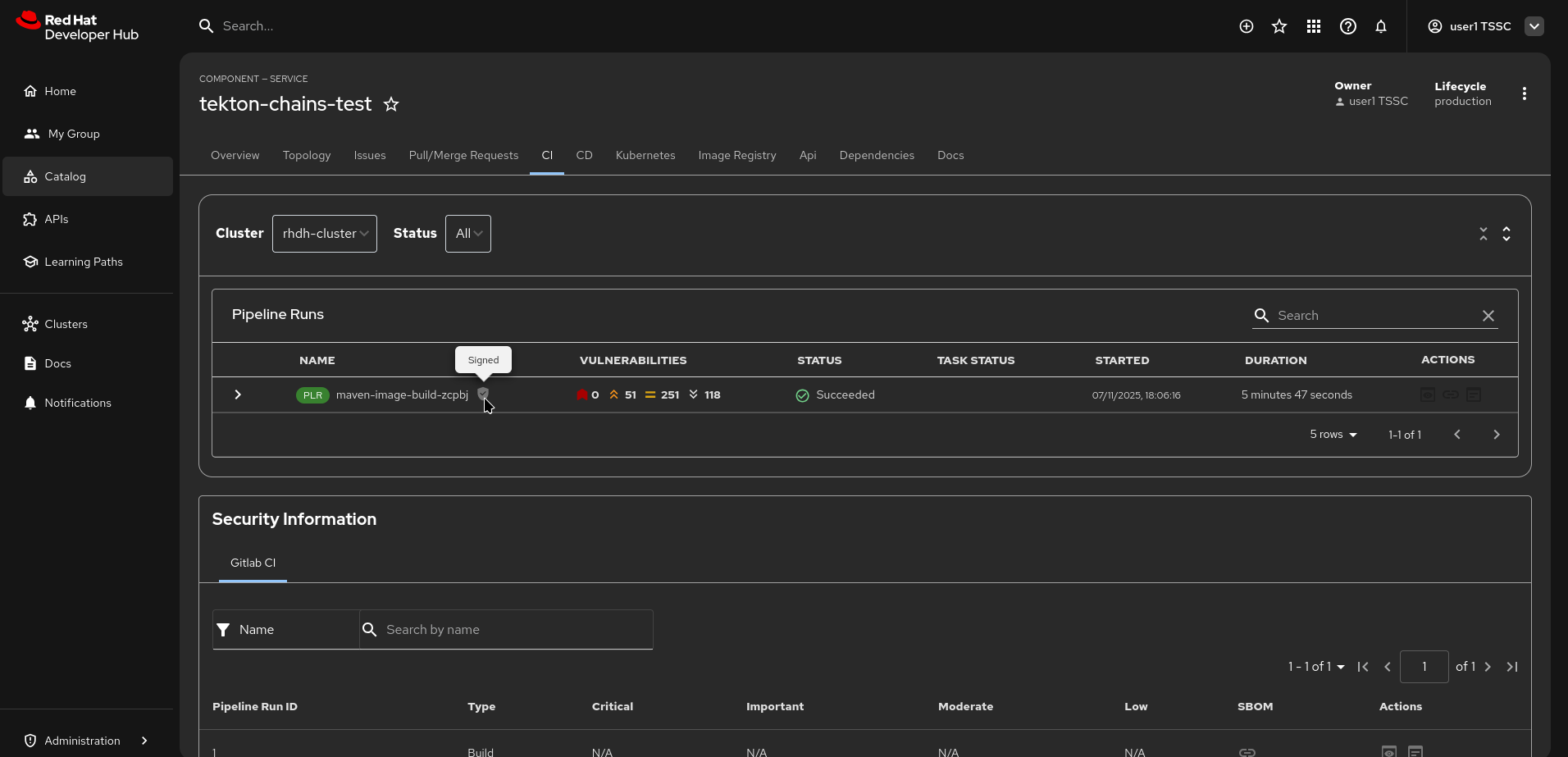
After the pipelinerun has finished, you can see that the pipelinerun itself has been signed and attested (the little "shield" showing "signed" when hovering over it.)
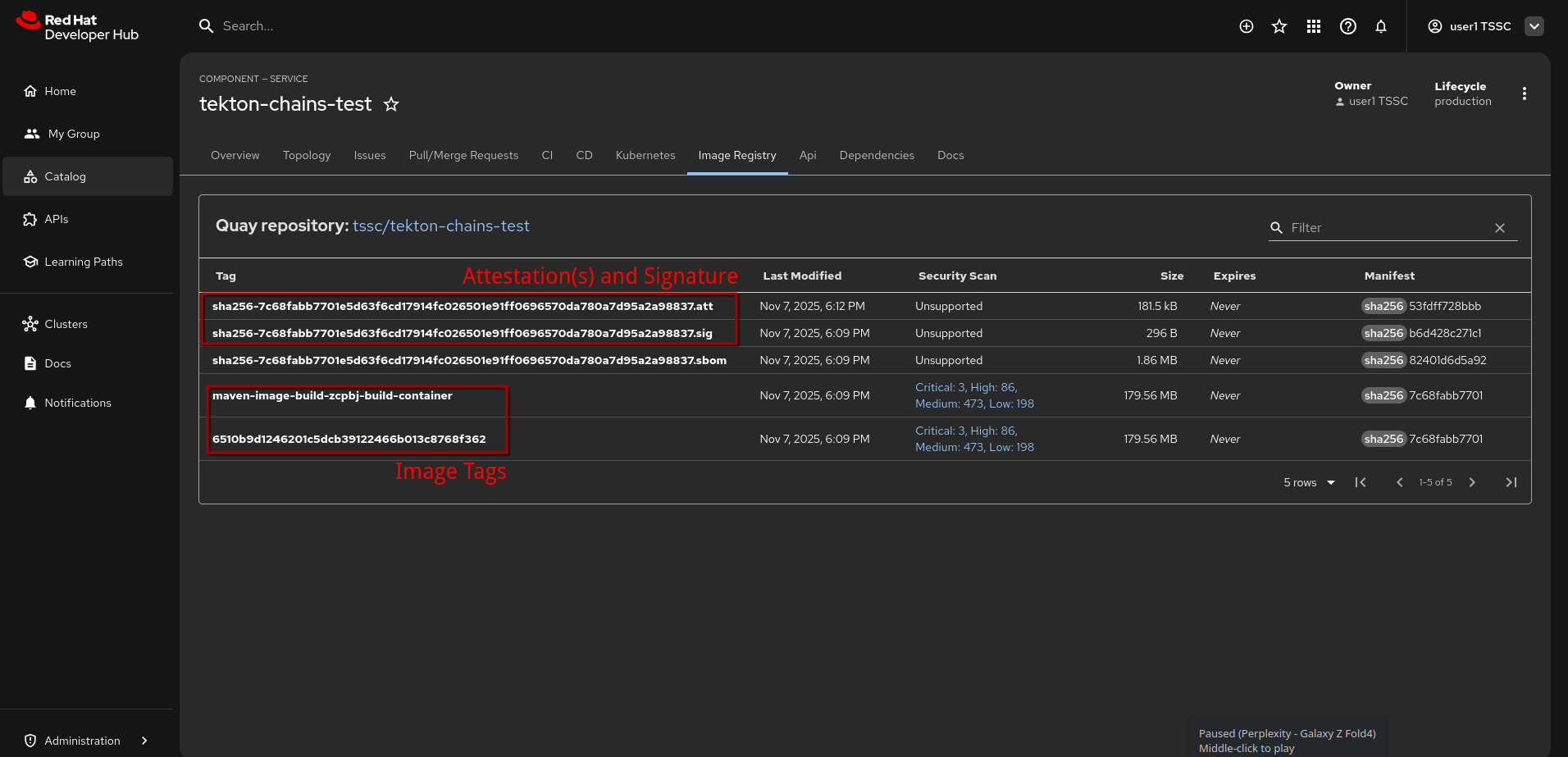
When we go to the {rhdh_url}/catalog/default/component/tekton-chains-test/image-registry[Image Registry Tab^,window="rhdh"], we can see that the image has two tags, but also three associated elements:
-
an SBOM (created by a pipeline task, using
syft) -
a signature (
*.sig) -
an attestation (
*.att)
Both of which haven’t been created by an explicit sign and attest pipeline task, but by Tekton Chains.
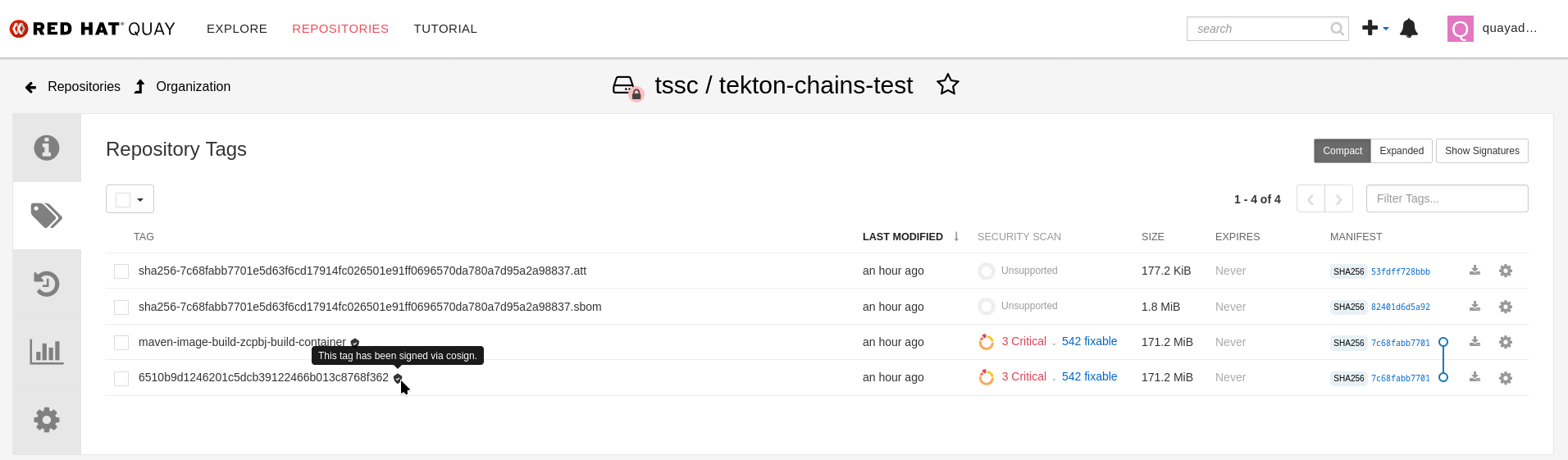
If we open that in {quay_url}/repository/tssc/tekton-chains-test?tab=tags[Quay directly^, window="quay"] we can see that Quay also recognises the signature (which the Quay Plugin for Red Hat Developer Hub doesn’t show in its current version):
To login to Quay, use {quay_admin_user} and {quay_admin_password}
|
The Chains Attestations
To take a closer look at the attestations and signature, we need to download and inspect them.
As in earlier exercises, we will be using cosign for this.
Therefore, please open the Podman Terminal again.
If you’re asked to login again - choose any user you might have saved in your browser (such as {rhdh_user} with {rhdh_user_password} or {openshift_admin_user} with {openshift_admin_password})
|
To get our helper scripts, we need to clone the helpers repository again - and we’ll start with obtaining the full image reference on Quay and store it in the $CHAINS_IMAGE variable
git clone https://github.com/redhat-tssc-tmm/l3-enablement-helpers.git
cd l3-enablement-helpers/tas-tssc
source ./get-chains-image-sha.sh
echo ""
echo $CHAINS_IMAGE
Verification
We will again (as in other modules) use cosign verify but we need the public key, since our current Chains configuration uses a public/private key pair.
Cosign then also verifies against the Rekor instance (which you can see if you type help since we have all that in environment variables).
Unless you use the --insecure-ignore-tlog, cosign will always verify the Rekor inclusion.
cosign verify --key k8s://openshift-pipelines/signing-secrets $CHAINS_IMAGE | jq|
In our Chains configuration, we have To reference a key, we can use
|
So, we can tell that it is a valid signature (that also has its inclusion proof in Rekor)
cosign verify --key k8s://openshift-pipelines/signing-secrets $CHAINS_IMAGE | jq

Verification for quay-vtm4r.apps.cluster-vtm4r.dynamic.redhatworkshops.io/tssc/tekton-chains-test@sha256:7c68fabb7701e5d63f6cd17914fc026501e91ff0696570da780a7d95a2a98837 --
The following checks were performed on each of these signatures:
  - The cosign claims were validated
  - Existence of the claims in the transparency log was verified offline
  - The signatures were verified against the specified public key
[
  {
    "critical": {
      "identity": {
        "docker-reference": "quay-vtm4r.apps.cluster-vtm4r.dynamic.redhatworkshops.io/tssc/tekton-chains-test"
      },
      "image": {
        "docker-manifest-digest": "sha256:7c68fabb7701e5d63f6cd17914fc026501e91ff0696570da780a7d95a2a98837"
      },
      "type": "cosign container image signature"
    },
    "optional": null
  }
]
Similarly, we can validate the attestation’s integrity and signature, if we know its type - but trying doesn’t hurt, so cosign will give us an error if it’s default predicate type (custom) doesn’t match what we have in the attestations:
cosign verify-attestation --key k8s://openshift-pipelines/signing-secrets $CHAINS_IMAGE | jqcosign verify-attestation --key k8s://openshift-pipelines/signing-secrets $CHAINS_IMAGE | jq
Error: none of the attestations matched the predicate type: custom, found: https://slsa.dev/provenance/v0.2,https://slsa.dev/provenance/v0.2
error during command execution: none of the attestations matched the predicate type: custom, found: https://slsa.dev/provenance/v0.2,https://slsa.dev/provenance/v0.2So, it tells us what predicate types we have and we can then check
cosign verify-attestation --type https://slsa.dev/provenance/v0.2 --key k8s://openshift-pipelines/signing-secrets $CHAINS_IMAGE | jq '.payload = "<payload>"'|
We added the |
Download & Inspect
After successfully verifying the attestation, we can download and inspect it:
cosign download attestation --predicate-type https://slsa.dev/provenance/v0.2 $CHAINS_IMAGE | jq '.payload = "<payload>"'
As you might have noticed, the download attestation subcommand doesn’t take a key, so it doesn’t verify the signature or its integrity - however, the output is in the same format as cosign verify-attestation (above).
|
cosign download attestation --predicate-type https://slsa.dev/provenance/v0.2 $CHAINS_IMAGE | jq '.payload = "<payload>"'
{
  "payloadType": "application/vnd.in-toto+json",
  "payload": "<payload>",
  "signatures": [
    {
      "keyid": "SHA256:gElT0CKh7ref5P9CLalcPOSJB2ojX/28MCZFEhUrDSU",
      "sig": "MEUCIFAEpX6AElGd+AjsJRwRPKYfRj/LuCqLix0011BWm0rQAiEAp2zYjpkMFTLf54PTMX/RkD5OKpYLGnXGLSd0rtzgnG8="
    }
  ]
}
{
  "payloadType": "application/vnd.in-toto+json",
  "payload": "<payload>",
  "signatures": [
    {
      "keyid": "SHA256:gElT0CKh7ref5P9CLalcPOSJB2ojX/28MCZFEhUrDSU",
      "sig": "MEUCIH/Fr8cDTSrsitgfVS/OHGBv/5XhvB8wjrk1mIxZfpsrAiEA79EFeVM37iyp3iCJk2QSAPMsnCuH5m43qCtEYq5+2eU="
    }
  ]
}
So, we know the payload has the OCI-recognised MIME-type application/vnd.in-toto+json and its signature.
Taking a look at the actual attestation (the payload) requires decoding it - we’ll again use jq for that:
cosign download attestation --predicate-type https://slsa.dev/provenance/v0.2 $CHAINS_IMAGE | jq -r '.payload' | base64 -d | jq . | lessHINT: Exit less with q or Q
|
As you can see, these two attestations are quite verbose. If you’d like to study them in more detail in your IDE / JSON Tooling of choice, you can download it, since the Terminal is just another pod on OpenShift. In the Terminal, run: On your local machine, log in to OpenShift using the admin account token (Click "request another token" if you follow the link). Then, find the terminal’s pod name: (yours will be different) With the pod name from your environment, copy the file to your machine to inspect it |
When you look closer, you can see that we have two in-toto attestations of type https://slsa.dev/provenance/v0.2
-
one with
"buildType": "tekton.dev/v1beta1/TaskRun" -
one with
"buildType": "tekton.dev/v1beta1/PipelineRun"
Both have the builder.id: "https://tekton.dev/chains/v2"
Both also contain all the environment and parameters data under invocation as well as the used materials (task images and git source for the pipelinerun) and build timestamps under metadata.
So, we have a full description of the build environment and the inputs that were used to create the artifact (which is the "subject" in the in-toto statement "envelope")
(click to enlarge)
TaskRun: 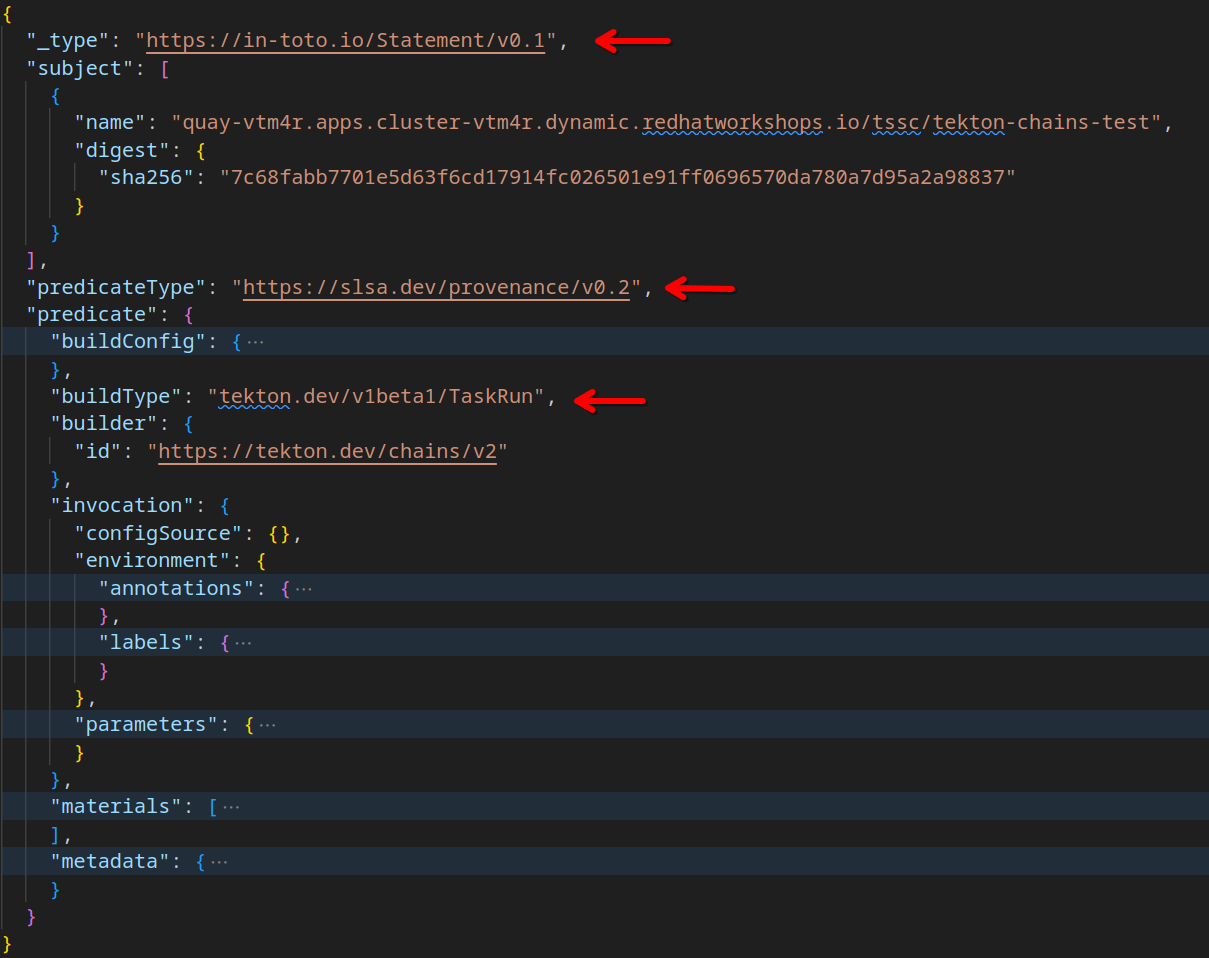
|
PipelineRun: 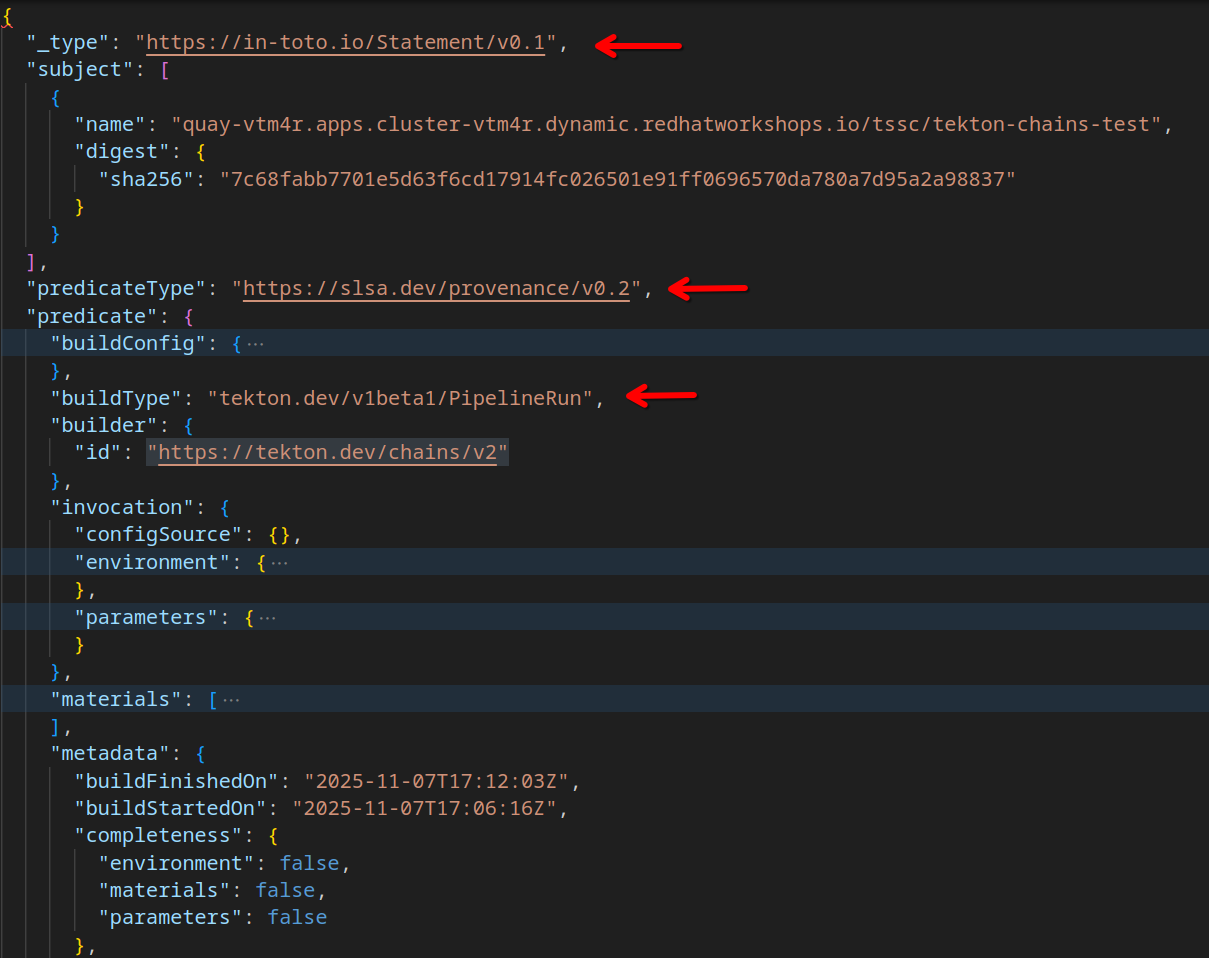
|
This is a standardized format (the slsa.dev/provenance/v0.2 format) that Enterprise Contract / Conforma policies and rules can interpret to validate the content.
More on that in the next chapter.
Summary
In this chapter, you learned how to configure Tekton Chains and how to use it to sign and attest images and pipelines.
You also learned how to verify the attestations and signatures and how to download and inspect them.
In the next chapter, you will learn how to use Enterprise Contract / Conforma to validate the attestations and signatures (and ultimately how RHADS and RHACS combined can enforce security policies for your images and pipelines through their respective admission controllers). On to the next chapter!